![Evovia_Logo_RGB.svg]](https://www.evovia.com/hubfs/Evovia_Logo_RGB.svg)
1. Generate report
-
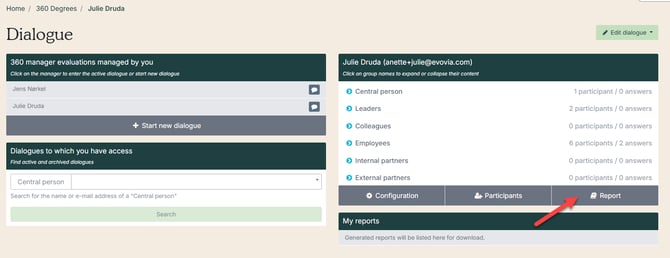
Once everyone has responded, or a sufficient number of respondents have completed the questionnaire, the report can be generated by the report owner.
-
Red arrow: Click Report.
2. Remove respondents
The report is closed by removing respondents who have not completed their questionnaire.
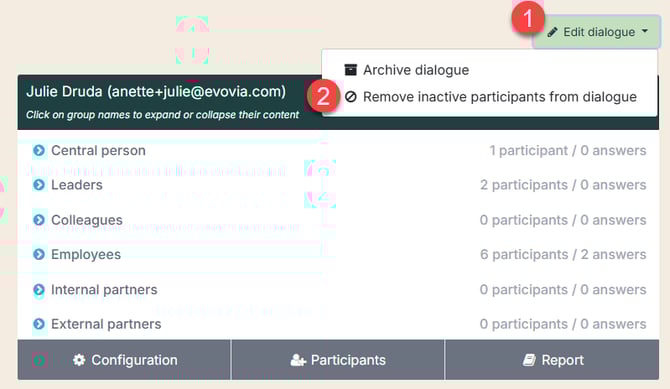
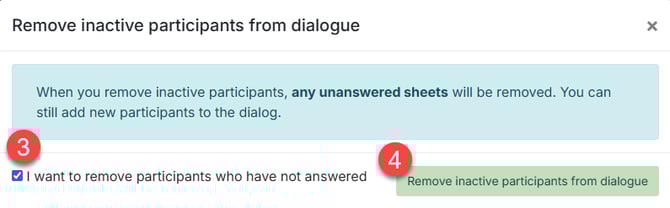
Follow steps 1–4:
-
Select Edit dialogue at the top right
-
Click Remove inactive participants from the evaluation
-
Check I want to remove participants who have not answered
-
Click Remove inactive participants from dialogue
3. See how respondents are removed from the survey
4. Customize chapters
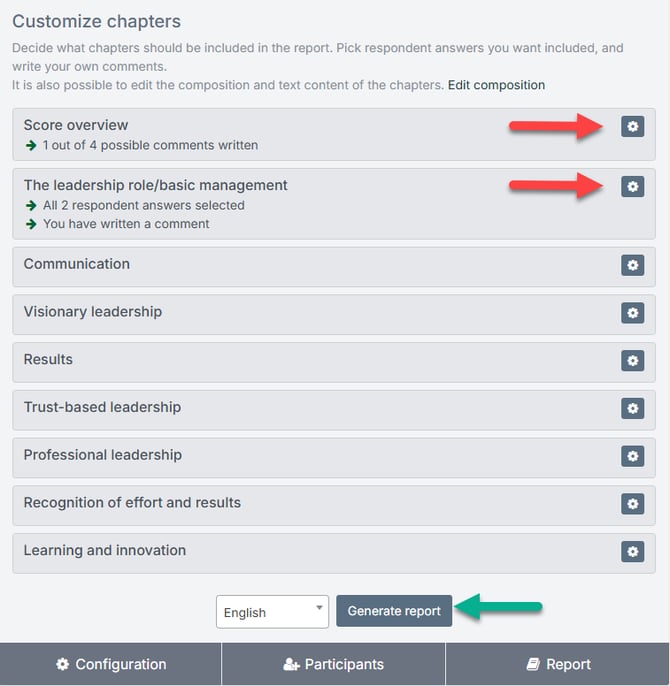
The report owner can customize the report and add comments.
The overview shows each chapter in the report based on the sections included in the questionnaire.
Click the gear icon (red arrow) next to each chapter to:
-
Add or remove respondent comments
-
Write a comment as the report owner
-
Remove the chapter from the report
The report is generated by clicking Generate report (green arrow).
5. See how the chapters are customized