![Evovia_Logo_RGB.svg]](https://www.evovia.com/hubfs/Evovia_Logo_RGB.svg)
1. The minute is sent
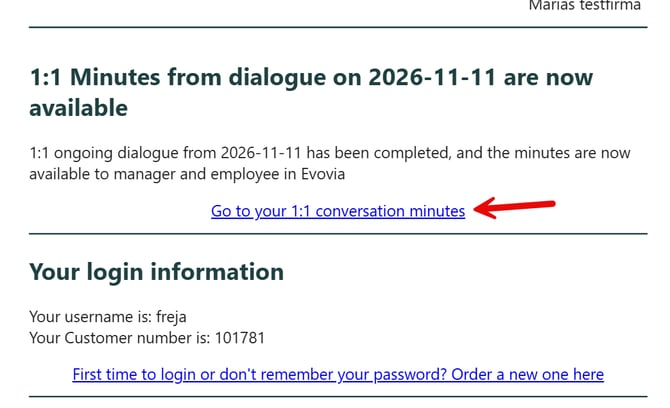
When your manager has finished the minute, you'll receive an e-mail about it.
Click on the link (red arrow). The questionnaire will open automatically when you are loggen into Evovia.
2. Find the minute
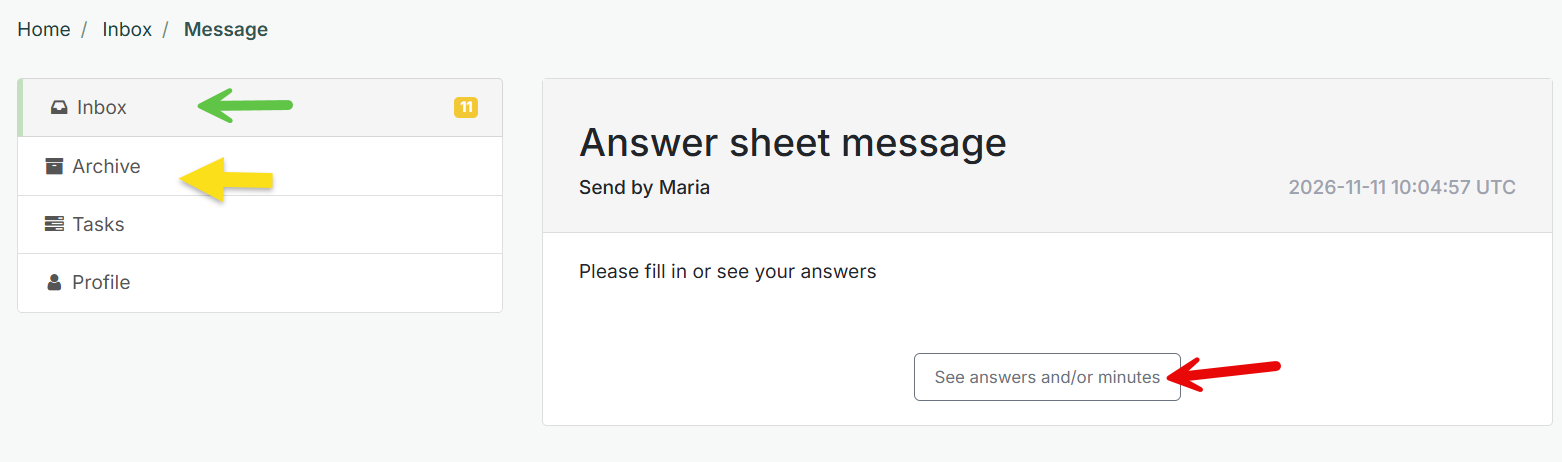
When you are logged into Evovia, you'll find the minute in your Inbox (green arrow) or in the Archive (yellow arrow). Click on it (red arrow).
3. Open the minute
Click on "See answers and/or minutes" (red arrow).
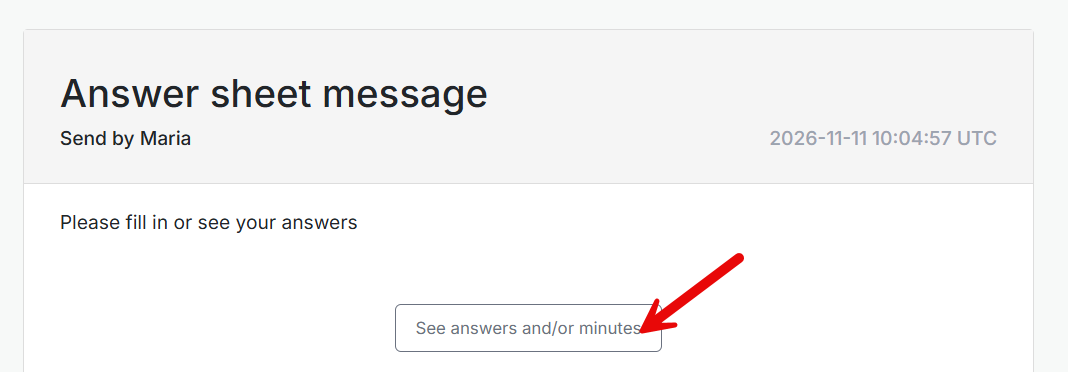
4. Read the minute
Black speech bubbles show where there is a minute or a task. All questions can be opened or closed by clicking on the speech bubble (red arrow).
See the minute (yellow arrow) and tasks (green arrow). See your answers (purple arrow). 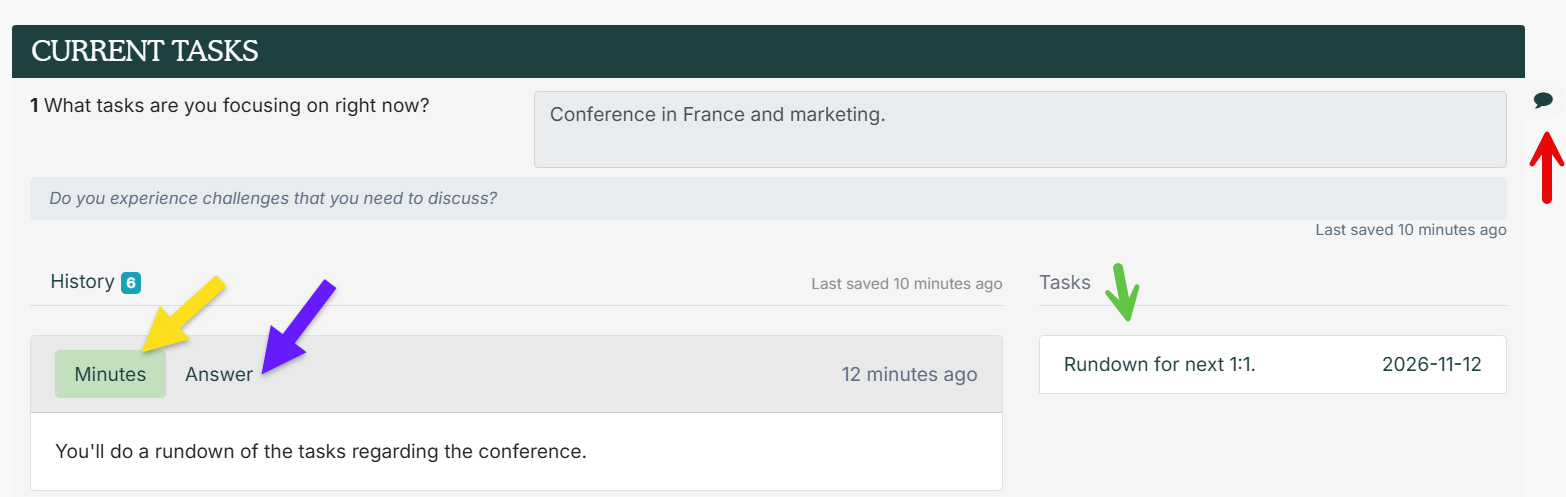
5. Download
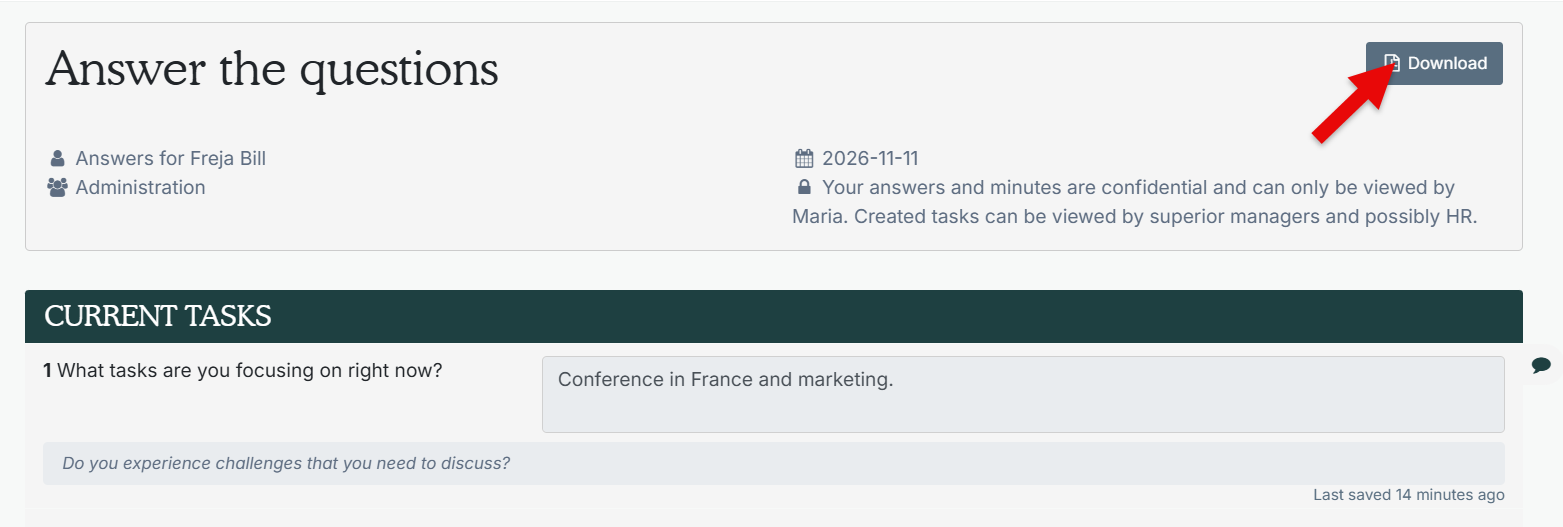
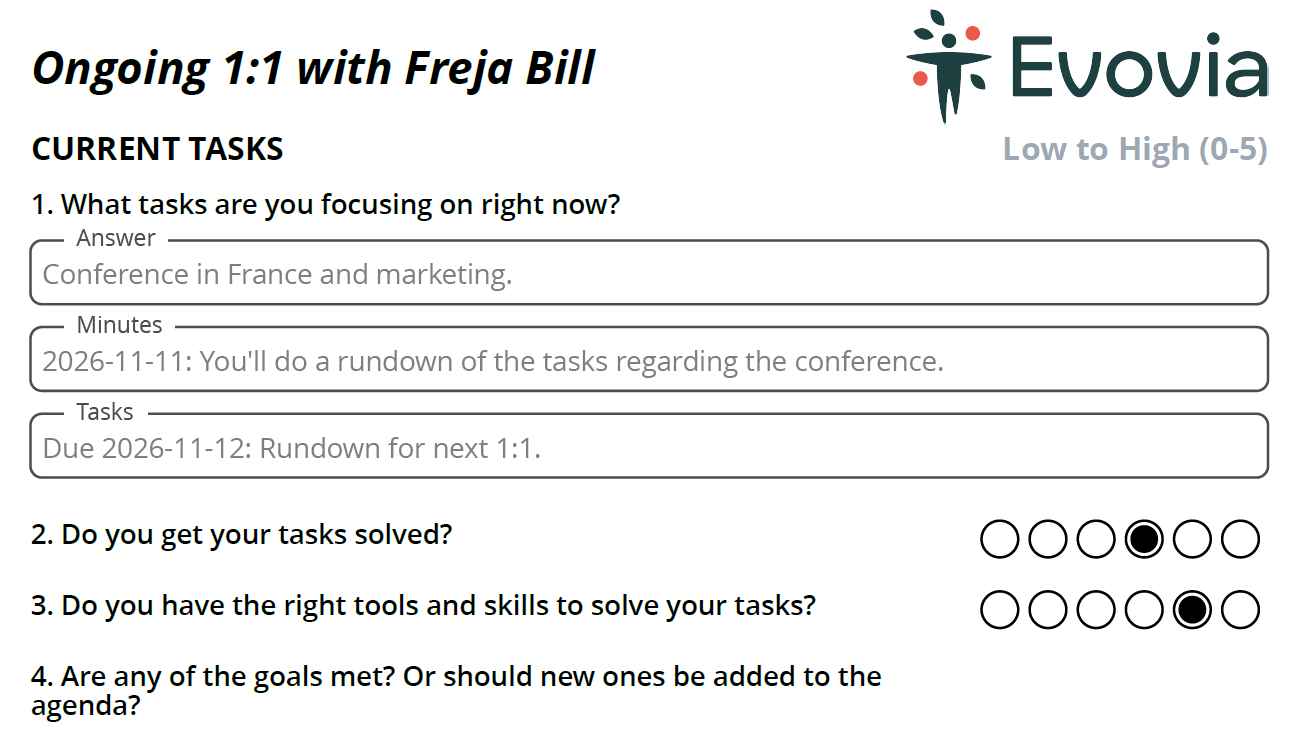
An overview of the minute and tasks can be made by clicking on 'Download' (red arrow).