![Evovia_Logo_RGB.svg]](https://www.evovia.com/hubfs/Evovia_Logo_RGB.svg)
1. Survey closed
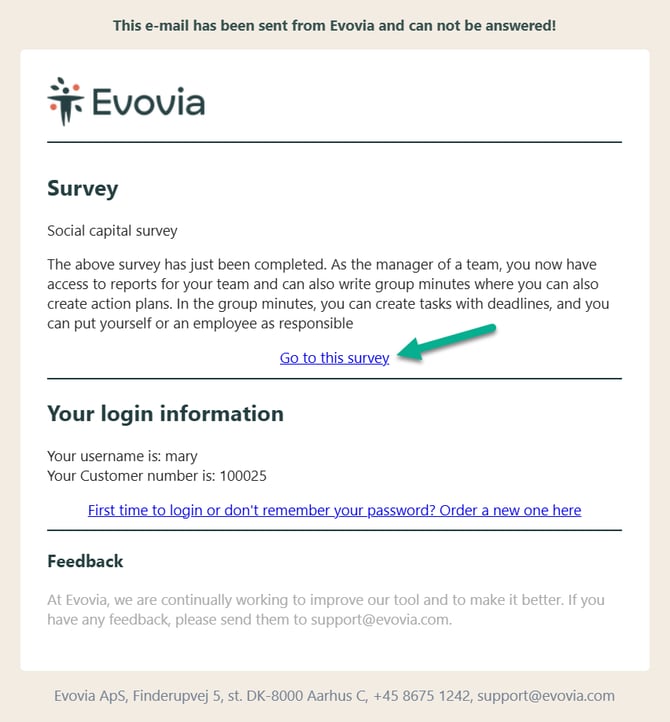
When the survey is closed, you will receive an e-mail saying you have access to the survey.
Follow the link in the e-mail (green arrow). It will automatically open, when you are logged into Evovia.
2. Go to survey
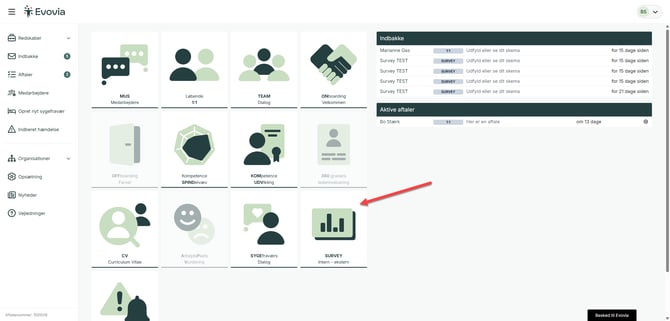
If you are logged in, go to Survey on the front page.
Click on Survey (red survey.
3. Choose the survey
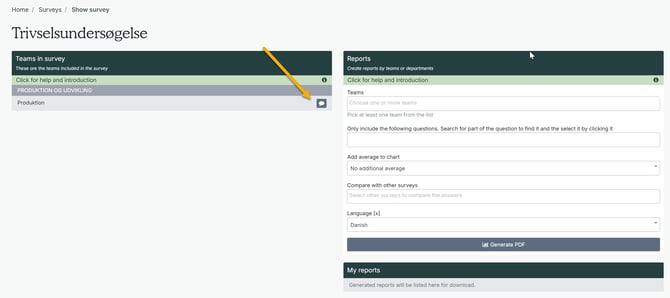
Click on the survey you want to go to (red arrow).

4. Open the group minutes
Go to the group minutes by clicking on the speech bubble (yellow arrow).
5. See the results
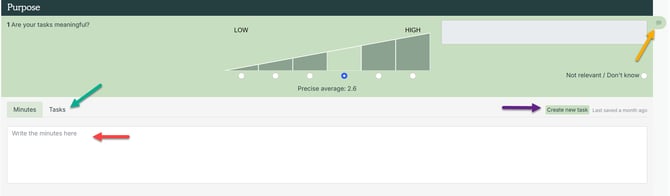
When the group minutes are open, all the questions are visble as well as the average response for each question (red arrow).

See how to make the reports in the manual Make a survey report
6. Write a minute
- Minutes (red arrow): Here you write the minute. It will automatically be saved. The minute will be sent to the employees, when you click on Close and send the answers at the bottom.
- New task (purple arrow): Create a task.
- See tasks (green arrow): Overview of all tasks for this question.
The minutes can be read by the manager and the employees in the team.
The tasks are always visible by the manager, top management and HR.
7. Create a task
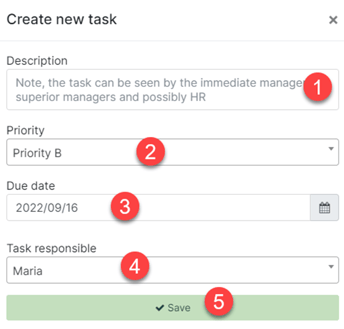
You have the following options when creating a task.- Write a description of the task.
- Set a priority.
- Set a due date as deadline. An e-mail is sent if the task is not marked as finished by the due date.
- Choose a responsible person for the task.
- Click Save to create the task.
8. Finish the group minutes
When the minute is finished, click “Close and send the answers” to finish.
