![Evovia_Logo_RGB.svg]](https://www.evovia.com/hubfs/Evovia_Logo_RGB.svg)
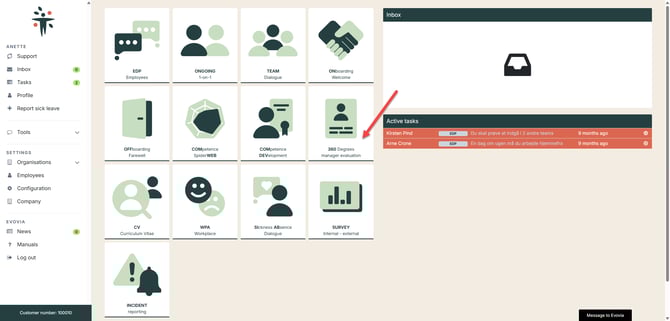
Select 360-degree manager evaluation on the front page (red arrow).
2. Start new dialogue
Click on “Start new dialogue” (red arrow).
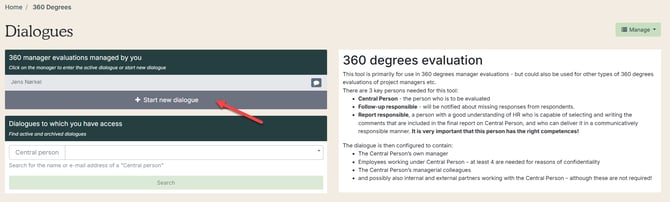
Are you missing + Start new dialogue?
You must have the department involvement Create dialogue (360).
See how in the guide – Select HR and administrator.
3. Insert information
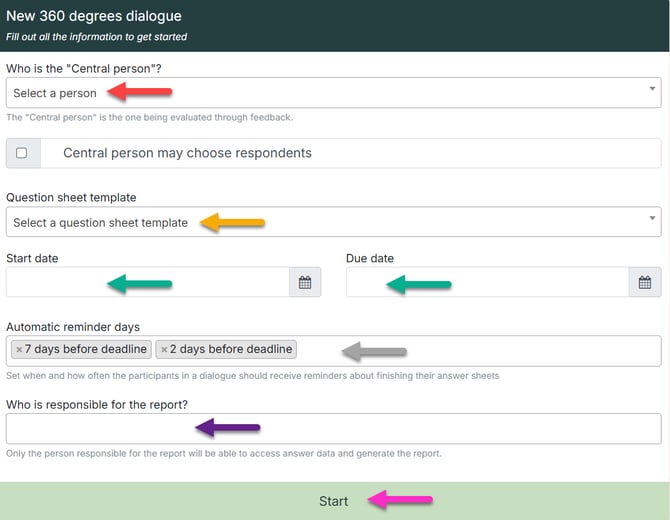
Then complete the box that appears on the right:
-
Red arrow: Select the manager.
-
Yellow arrow: Select a questionnaire.
-
Green arrow: Select the send out date and the deadline for responses.
-
Grey arrow: Select days for automatic reminders. This field is only visible if, in the setup, access has been granted to edit automatic reminders. See more under Setup of 360-degree manager evaluation.
-
Purple arrow: Select who will be responsible for the report. If there are multiple report owners, they must all be added at the same time.
-
Pink arrow: Create by clicking Start.
-
A manager cannot be responsible for their own manager evaluation, so the “Person in focus” (red arrow) and the “Report owner” (purple arrow) cannot be the same person.
We do not recommend selecting today’s date (green arrow), as the system will send emails within an hour to the respondents that the system has created for the person in focus.
4. See how the 360-degree manager evaluation is created
5. Overview of respondents
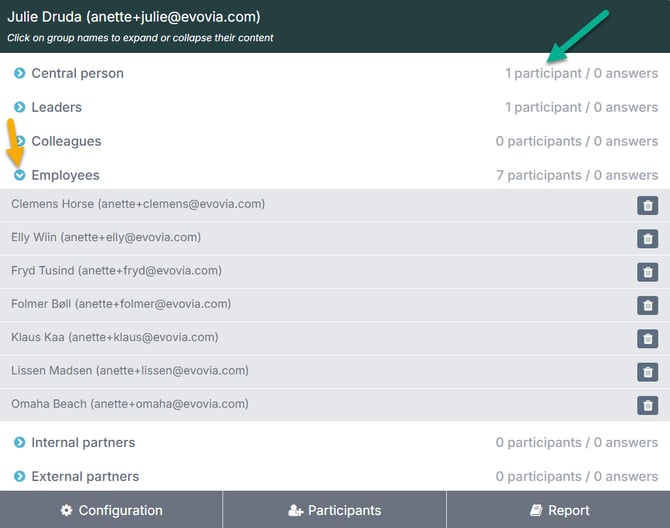
In addition to the Person in focus, respondents can be assigned in five other groups:
The system automatically fills in the employee and manager groups.
- Green arrow: See the number of respondents in each group as well as the number of responses.
- Yellow arrow: Click on the group name to view the respondents in that group.
6. Add respondent
Follow steps 1–4 to add a respondent.
-
Select the Participants tab
-
Search for the employee
-
Select a group
-
Click Add
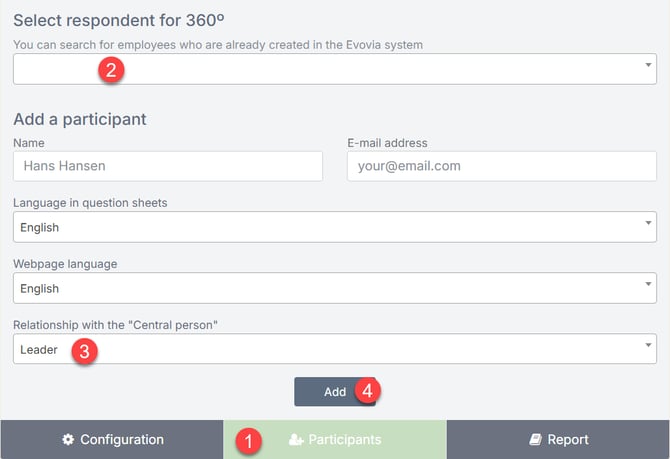
Respondents can also be added after the evaluation has started.
7. See how respondents are added
8. Remove respondents
Respondents can be removed from the evaluation before the send out date.
Follow steps 1–2 to remove a respondent:
-
Select a group, e.g., Employees
-
Click the trash can icon next to the respondent
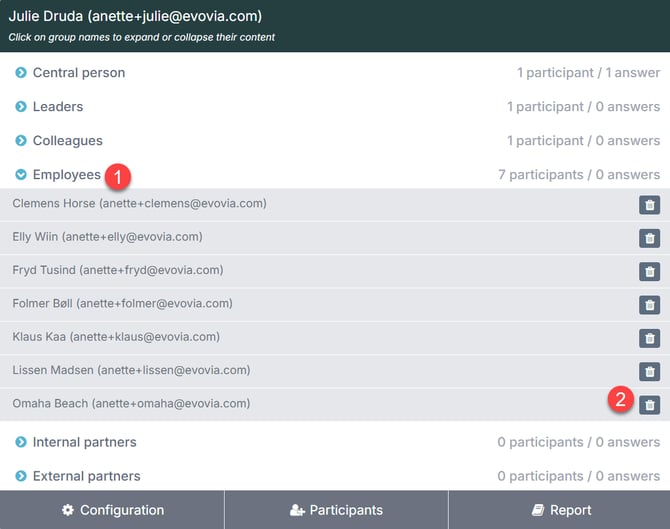
9. See how a respondent is removed
10. Overview for report owners
While the evaluation is active, report owners can continuously track who has responded and how many responses have been received.
-
Green arrow: Shows the number of responses in each group.
-
Red arrow: Click the envelope icon to resend the questionnaire.
-
Purple arrow: When an employee has completed their questionnaire, the paper icon turns green.
-
Yellow arrow: When an employee has finished their response, the lock is closed. The questionnaire can be reopened by clicking the lock.
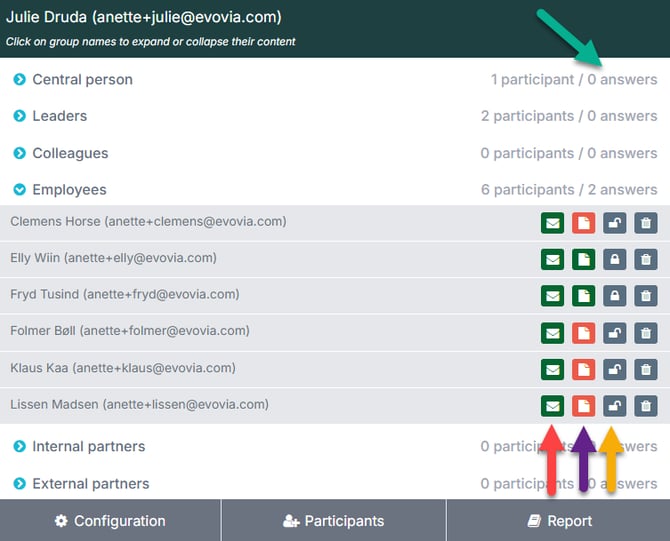
See how the report is generated in the guide Create a 360-degree leadership evaluation report.